Website overlays are basically interactive UI elements that jump out to grab your attention. Usually, the goal is simple: drive a conversion or relay important information. But what type of website overlay should you use? The most common types are popups, modals, and lightboxes. Knowing the difference between these UI elements can be difficult, especially since the terms are used interchangeably.
This guide will help you clearly understand the difference between a popup, a modal, and a lightbox so you can choose the correct one. There are key differences you need to know.
Understanding Different Website Overlays
Think of “website overlay” as the big umbrella term. Under that umbrella, you’ve got things like signup forms, live chat widgets, and those “wait, don’t go!” exit-intent popups. You have probably seen welcome banners, email signup forms, and exit-intent popups.
Website overlays either completely interrupt the customer journey, nudge the user along, or serve as a backdrop to the user journey. We explore the most common types: popups, modals, and lightbox elements.
What is a Popup?

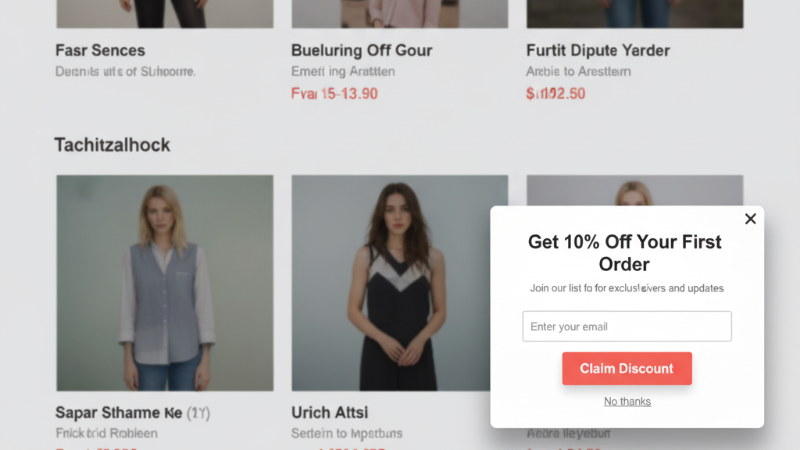
A popup is a floating box that appears on a website, triggered by a user’s action. Actions include landing on the home page, scrolling past a certain point in the webpage, or clicking a button. They offer discounts in exchange for an email address, display important announcements, or offer last-minute, exclusive deals before a user exits a page. Their display, triggers, and positioning are very customizable, based on your objectives.
Popup Examples
Some common popups include:
Time-Based Popups
Exit-Intent Popups
Scroll-Triggered Popups
Click-Triggered Popups
Welcome Mats and Full-Screen Overlays
Explore The Ultimate Beginner’s Guide to Using Popups in WordPress (2026)
What is a Modal?
As seen on ClickUp
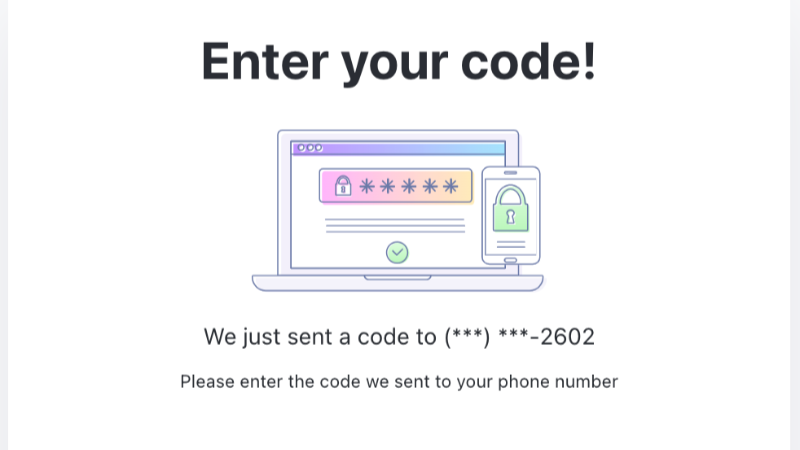
Modals are interactive UI elements that appear and block the webpage, temporarily disabling you from clicking on any UI elements on the webpage or behind the box. Unlike popups, modals aren’t there to sell you something. Modals have a purpose: to ask for critical information, get confirmation, or alert users. They disrupt and demand attention.
Modal Examples
Dialog modals that collect important information (payment details)
Confirmation modals
Modal UX Best Practices
The rule with modals is: less is more. One clear action, one obvious way to close it, and a CTA that actually tells the user what happens next.
Include necessary buttons.
Use clear CTAs.
Make them easily dismissible.
Modals must be scalable for the web and mobile.
When to Use a Modal vs a Popup
Use a modal for critical information that is user-initiated content, such as log-in forms, confirmation codes, or questions. Don’t use a modal for a simple welcome message or discount codes. Use popups to collect email addresses, drive conversions, or support other marketing goals.
What is a Lightbox?
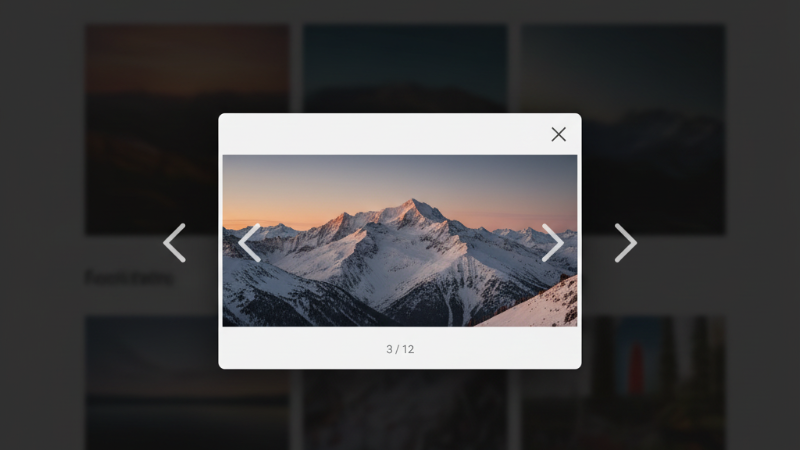
A lightbox looks different from your standard popup; the background of the site dims or blurs. It’s a visual cue that says, “Focus on me.” Lightboxes are often used for media. They work best for displaying images or videos.
Lightbox Example
Spin-to-win
Personalized offers
Video tutorials
Is a Lightbox the Same as a Modal?
A lightbox is a type of modal. Lightbox and modal elements are prominent website overlays, but they have key differences. Modals use dialog boxes that require input, whereas lightboxes work best for media, videos, and marketing messages.
Is a Lightbox the Same as a Popup?
A lightbox is a type of popup. But not all popups are lightboxes. Lightboxes are distinguished by their dimming effects, centered messages, and prominent messaging.
Popup vs Lightbox vs Modal: Comparison Table for a Quick Overview
| Primary Goal | Marketing Lead Generation | Critical Tasks | Visual Focus Media |
| Background Effect | Usually remains clear; the user can often see the page. | Dimmed or blurred; background is non-interactive. | Dimmed or blacked out to create a “theatre” effect. |
| User Disruption | Moderate; can be ignored or closed easily. | High; blocks all other actions until addressed. | High focus; keeps the user within a specific media view. |
| Trigger Type | Automated (Exit-intent, time-delay, or scroll). | User-initiated (Clicking “Log In” or “Save”). | User-initiated (Clicking a thumbnail or video play). |
| Dismissal | “X” button “No thanks” Link | Must be explicitly closed or action completed. | Clicking outside the box or hitting the “Esc” key. |
| When to Use | Promotional offers Newsletters Alerts | Forms, settings, and preventing accidental data loss. | Portfolios, product galleries, and video tutorials. |
Popup vs Modal vs Lightbox: Which One Should You Use?
Should you use a popup, a modal, or a lightbox? It depends.
Create a seamless user experience and generate leads? Use a popup.
Collect critical information like payment details? Use a modal.
Draw attention and create a high-impact visual experience? Use a lightbox.
Each of these website overlays has its own standout features. Beginners often opt for popups as they are more flexible, customizable, and common, especially for home pages or blog content. Many popup plugins today require no coding.
Popup vs Modal vs Lightbox in WordPress: What Are The Best Plugins Today?
In 2026, there are many modals and popups in WordPress you can use. Here are some of the best options to start your journey:
The Best Popups Plugins
PopupBox: High customization, perfect for beginners and intermediate users.
OptinMonster: Powerful targeting rules, great for agencies or established marketing teams.
Popup Maker: A popular free option for beginners.
The Best Modal Plugins and Tools
Elementor Popup Builder (Pro): Great for people who use the Elementor editor.
Modal Window: A lightweight plugin specifically designed to create high-performance modals.
The Best Lightbox Plugins
FooPlugins: Optimal for media-heavy websites that need to be resized for mobile.
Simple Lightbox: Great for beginners who want to use a lightweight plugin to add a lightbox effect to any image link on your site.
Tip: Some popup plugins, like PopupBox, also allow you to add and embed videos easily.
The Most Important Question: What Website Overlay Causes the Least UX Friction?
When choosing a website overlay, don’t forget to ask yourself how to produce the least UX friction possible. While modals are often necessary, they can disrupt the user experience and cause frustration. Similarly, lightbox UI elements can be overpowering if you do not have a very visual webpage or a clear objective when using them. Popups offer the most flexibility to both you and the user; they do not hinder the user experience as much as other website overlays.
The Etiquette of Overlays: What You Need to Know
Overlay fatigue is a real thing, which is why you need to know the etiquette. You need to know how users understand and experience websites today. There are rules you need to follow:
Give them space: Don’t fire a popup the millisecond I land. Let me read a sentence first.
Don’t be overwhelmed: If I close your box, don’t show it to me again every time I change pages.
Be relevant: If I’m reading a recipe, show me a kitchen tool, not a discount on car parts.
Try to be context-specific and add value where you meet the user, i.e. where the popup or modal appears.
Which Website Overlay Converts Best: Popup vs Modal vs Lighthouse
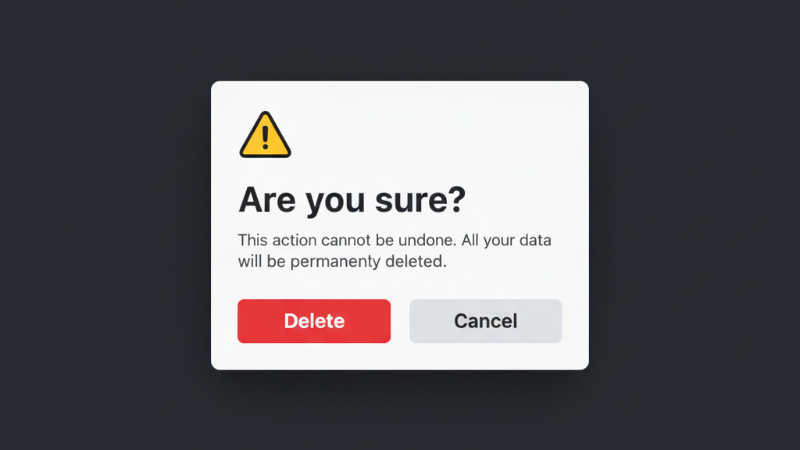
A modal converts better because they completely disrupt the user experience and demands attention.
Exit-intent popups are the highest converting popups because they are highly targeted.
A lightbox typically has lower conversion rates and is used to enhance the user experience.
If conversion is your goal, opt for a modal or exit-intent popup.
Final Thoughts on Website Overlays
At the end of the day, none of these is inherently good or bad. A well-timed popup can genuinely help someone find what they need. A modal can save a user from a costly mistake. A lightbox can make a product image stop someone mid-scroll. The difference is in knowing which tool fits the moment. Once you know the difference, choosing the right one is actually pretty straightforward.
FAQs: What Website Overlays to Use?
A popup is an interactive box that displays information, has trigger rules, and can easily be closed or even ignored. A modal is a type of popup that is often user-initiated and forces users to interact with the modal dialog by disabling the rest of the webpage.
Use a modal when you need to collect critical information or get confirmation, such as collecting payment details or asking, “Are you sure?” Use a popup to collect email addresses, produce welcome messages and discount codes, or give exclusive offers.
A lightbox and a modal have similarities in that they sit at the forefront of a webpage and draw focus, being harder to close than a traditional popup. Lightboxes are more commonly used for media, videos, and prominent marketing messages, whereas modals are used to collect critical information.
Studies show modals have higher conversion rates due to their prominent and disruptive nature, reaching above a 7% conversion rate. However, try not to overuse this website overlay as it can disrupt the user experience.
Yes, a lightbox supports media formats like video, as they create emphasis by dimming background content and creating a theatrical experience.
Exit-intent popups have the best conversion rates as they are more targeted.
In web design and software, a dialog box is a broad term for a popup window that requires user interaction. It creates a conversational or dynamic experience for the user, like a modal.
The best popup plugin for WordPress is PopupBox due to its highly customizable options and templates, affordable pricing, and great customer service.



Finally someone actually breaking down the difference instead of just calling everything a popup. I’ve been guilty of using “modal” and “lightbox” interchangeably for years. The comparison table at the end is super helpful for deciding what to actually use depending on the goal.