Popups have a bad reputation. When used well, they’re one of the highest-converting tools on any WordPress site. You may wonder how to create a popup in WordPress, one of the most popular content management platforms. Luckily, when you use the right plugin, popups in WordPress are easy to create. Follow this ultimate guide to building popups in WordPress, which even beginners will find easy.
What Is a Popup in WordPress?
Popups are considered website overlays, interactive UI elements that grab your attention when triggered by a user’s action. They can grow email lists, drive sales, and grab attention. Common types of popups include exit-intent popups, scroll-triggered popups, and welcome popups. They are all triggered by user behavior and have unique objectives: to drive conversions or to grow email lists.
Learn More About Website Overlays: What’s the Difference Between a Popup, Modal, and Lightbox?
Popups are undeniably effective if they are strategically used and add value. They still work today. A Reddit user said, “I have a welcome pop-up for 15% off. Started my business two years ago and have 40k emails from it. It has a 10% submit rate.”
So, how do you create a popup in WordPress?
Popular WordPress Popups Content Types and Their Triggers
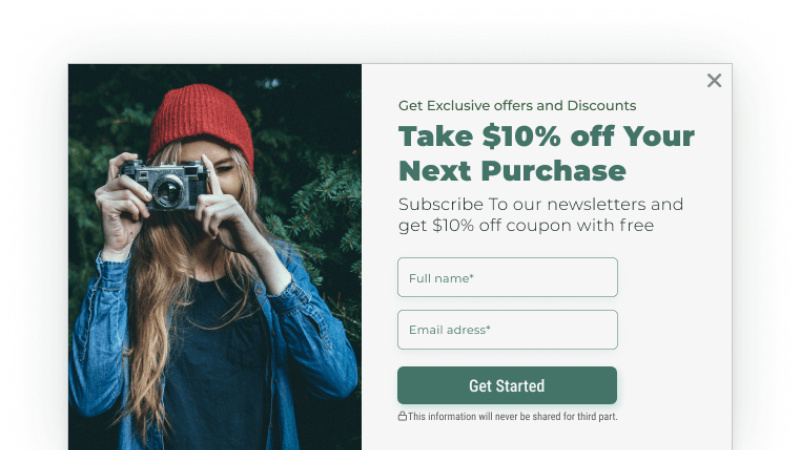
Before you learn how to create a popup in WordPress, you should understand the different types of popups and their content.
Popular WordPress Popups Content Types
1. Welcome Popups
These include custom-made and brand-aligned content to welcome your users. They are traditionally displayed on page-load.
2. Subscription/ Email Opt-In
These popup types offer a discount code or exclusive information in exchange for an email address.
3. Yes/No Popup
These popups ask a question with a standard two answers: yes or no. It is commonly triggered by exit-intent, as it engages the user further and can be used to redirect someone.
4. Video Popup (Uploaded File)
These can be an ad, a preview, or a tutorial, which are used to increase engagement.
5. Iframe Popup (Embedded YouTube)
Embed a YouTube video or any video that can be embedded, which can further increase engagement on other platforms.
6. Contact Form Popup
Help customers to get in touch with you, which is often displayed on button click.
7. Subscribe and Get a File
Users share data in exchange for a downloadable PDF.
8. Coupon Type
These popups offer a coupon or discount code.
9. Cookie Popup
Often a GDPR requirement, a popup that allows you to legally obtain users’ data.
How WordPress Popups Are Triggered
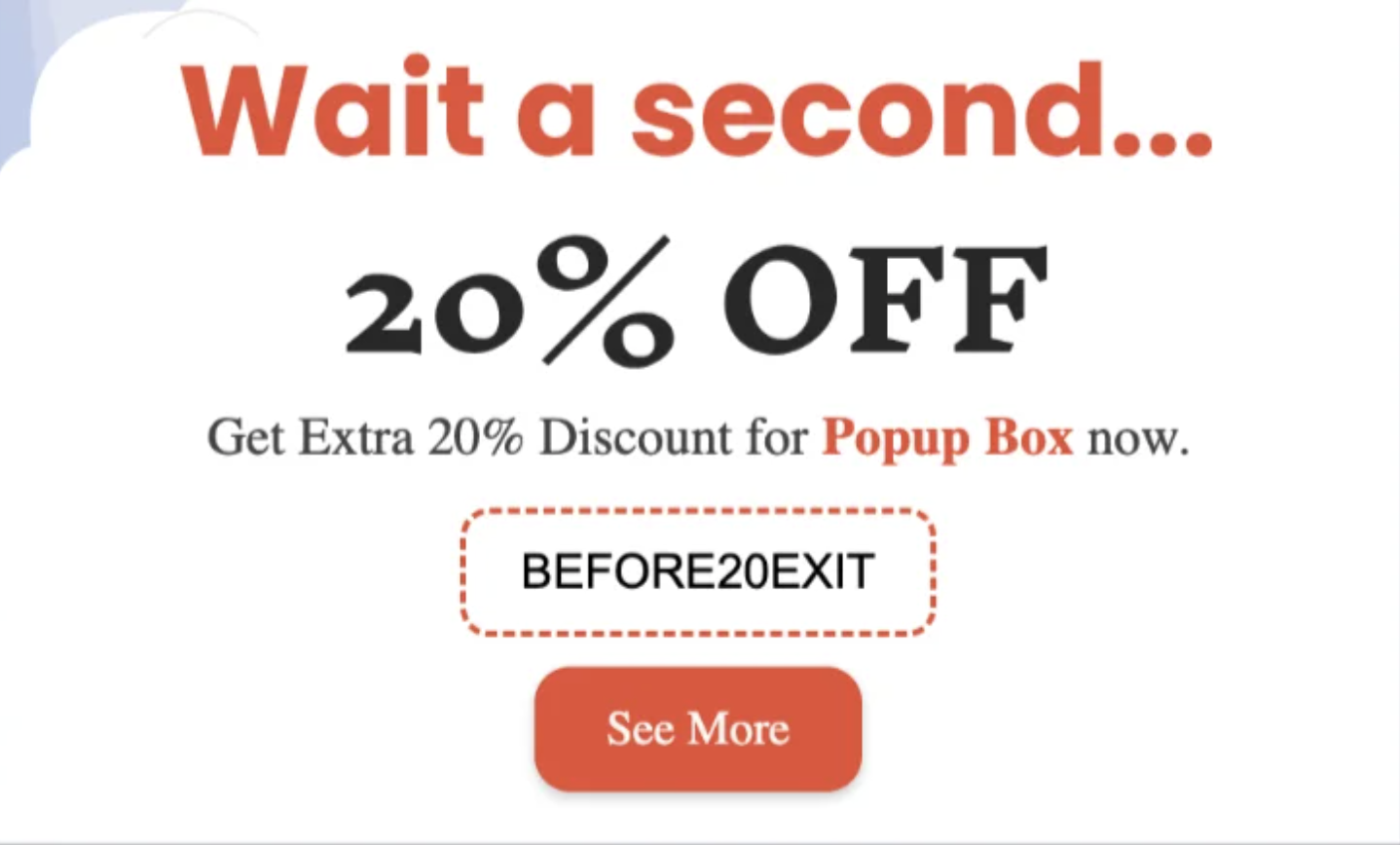
Exit-Intent
Exit-intent popups are fired when someone is about to leave your page, and their mouse moves toward the exit button. These popups are great for eCommerce stores that want to recover abandoned carts.
For More Tips, Discover What an Exit-Intent Popup Is and How to Convert Users in 2026
Click-Triggered
The click-triggered popup is triggered when a visitor clicks a specific element, image, or button. These types of popups have one of the highest conversion rates.
On Page Load
These popups appear when a user enters a webpage. Perfect for showing big sales, events, or new releases.
How to Add Popups in WordPress Using a Plugin
Once you understand how popups work, you can build your own. The good news is that creating popups in WordPress doesn’t have to involve coding. You can download a popup plugin on WordPress. Here is what you need to do to install a popup plugin:
1. Choose your plugin based on your objectives.
2. Install your plugin on WordPress.
3. Activate your plugin.
4. Connect your plugin to your email list.
Recommended Reading: What is a Popup in WordPress: The Ultimate Beginner’s Guide to Using Them (2026)
How to Create a Popup in WordPress (Step-by-Step)
There are many WordPress plugins to choose from today. This step-by-step guide uses one of the easiest and most user-friendly popups, PopupBox, to explain how to set up a popup box.
1. Go to your WordPress Dashboard.
2. Select Plugins on the menu on the side and press “Add New.”
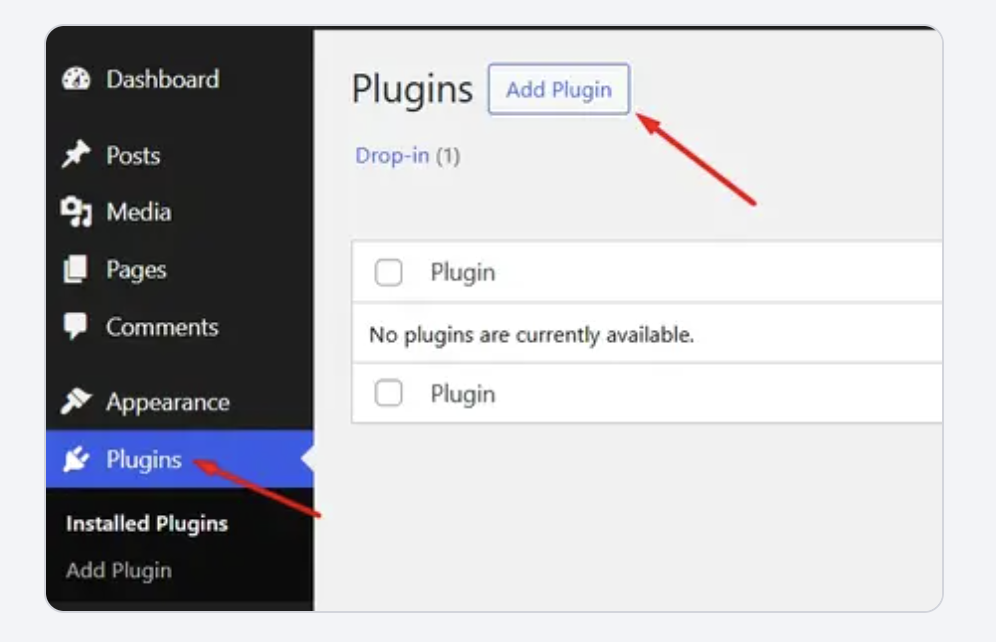
3. Search for the plugin, such as PopupBox.
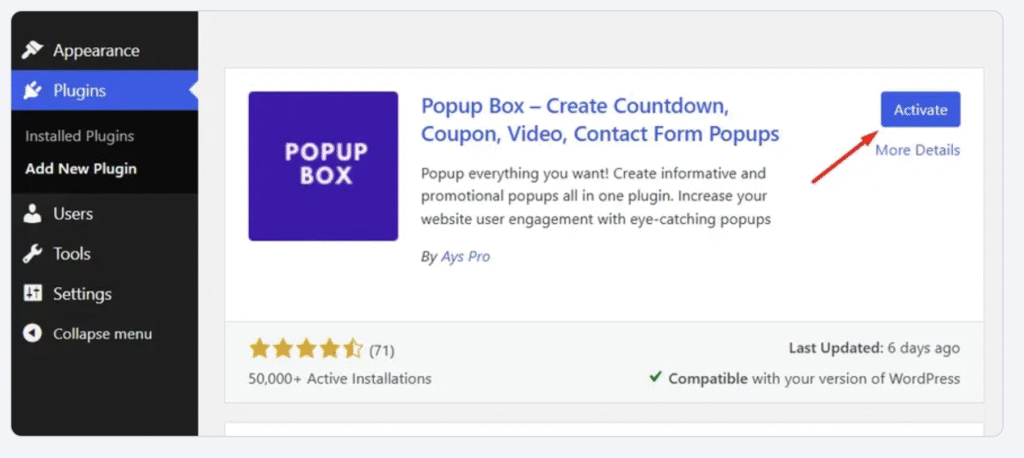
4. Click Install Now, then Activate.
5. View the “PopupBox” menu item on the left side of your dashboard.
6. Click on PopupBox > Create Popup.
7. Choose your popup type, which includes the popup types mentioned above.
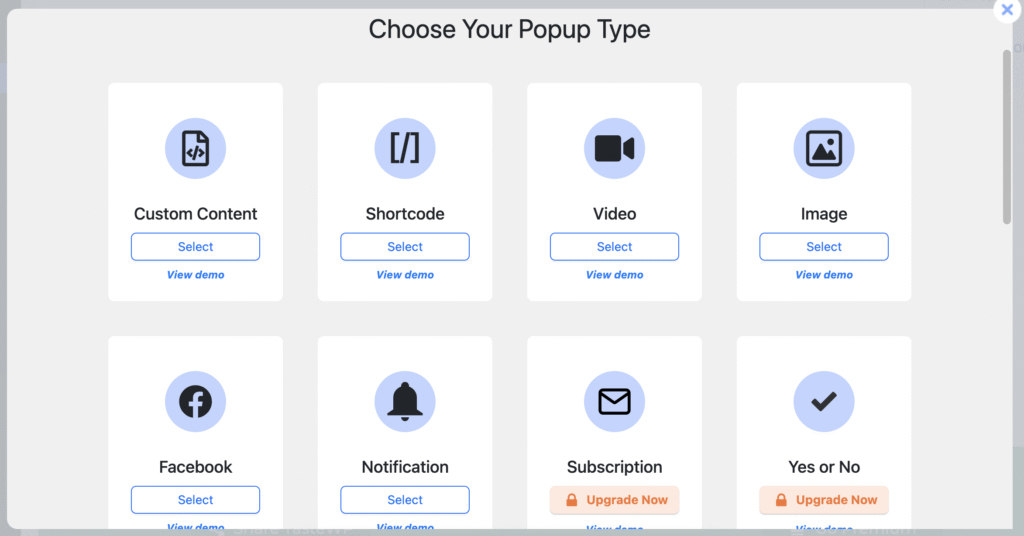
8. Browse and choose ready-made templates.
9. Under general settings, make sure your popup is enabled by default. For example, on all pages except for one. You can choose to display on the home page, too.

10. Add a popup description.
11. Choose popup triggers: on page load, click, exit-intent, or both.
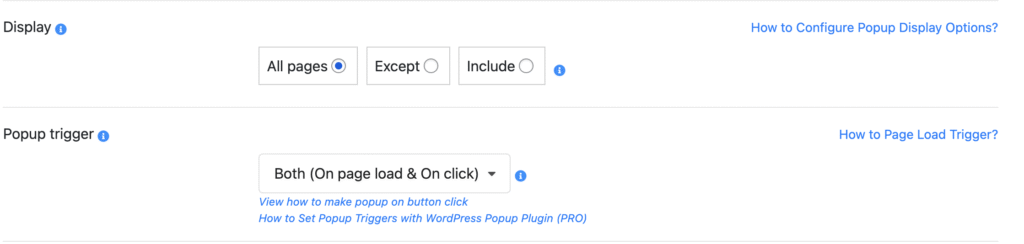
12. Decide on your popup position: the middle, left side, or right side of the page.
13. Then go to your settings tab.
14. Decide how your popup will be opened and closed. For example, open delay or open by scrolling down, which is based on a percentage of the page.
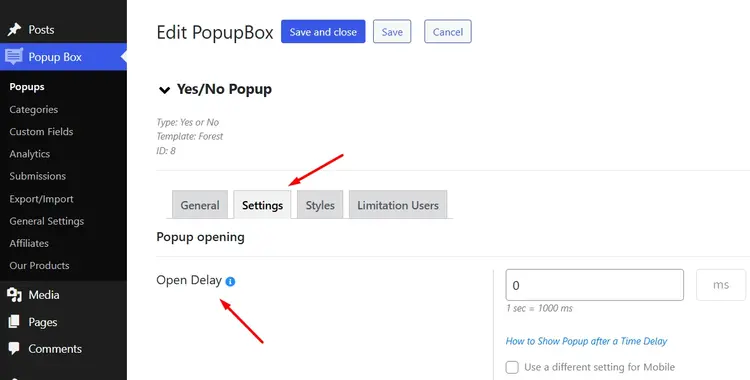
15. Decide on how to close your popup such as on click, scroll, or clicking outside the box.
16. Under advanced settings, write down your popup name and categorize your popup.
17. Choose how many times you want to display your popup per session. You can also dismiss your popup for a period of time or schedule it.
18. Under the styles tab, decide if you want to show your title, description, and configure your dimension for your popups, which is very important for mobile.
19. Choose your content style, color, and size.
20. Choose animation aspects like speed.
Extra Steps on How to Create Popups in WordPress Depending on Your Popup Type
When wondering how to create a popup in WordPress, most follow the step-by-step guide explained above. However, some popup types have additional steps based on their functions, such as adding data fields, downloadable files, countdowns, or videos. These popup types have additional steps that you can easily navigate.
Shortcode
Add a short code by using a Survey Maker plugin. This step is only necessary if you want to create a quiz or questionnaire.
See the demo here.
Custom Content
Add popup custom content if you want to upload your designs or further customize the popup; these are best for welcome popups.
See the demo here.
Subscription Types
If you are using subscription types, you need to have “data fields” to collect information, such as name, email, and privacy policy. The data you choose to collect is completely customizable. You also have an integrations tab to collect demographics seamlessly with popular email tools like MailChimp and GetResponse.
See the demo here.
Yes/ No Popups
Customize your question and choose to close or be redirected after the popup is displayed.
See the demo here.
Video Type
Choose a video template and, in the general settings, add the video in the dedicated area.
See the demo here.
Iframe Popup
Iframe popups are similar to video type, but instead of uploading a video, you will copy the embed URL in the designated section.
See the demo here.
Subscribe and Get a File
These popups require you to customize data fields, what information you will collect in exchange for the file. You will also need to upload the file that you want people to download when they subscribe and write the content message for your email.
See the demo here.
Countdown Popups
These popups require you to set the timer to include dates and times.
See the demo here.
Coupon Type
These popups require you to import a file in CSV format to create active and inactive coupons. Once coupon codes are shown, they become inactive. Your popup will not show if there aren’t any active coupons available.
See the demo here.
Cookie Popup

Choose Accept Cookie popup type and set an expiration time, how long you will display your Cookies before they disappear.
Popup Best Practices (What Actually Works)
Your popup on WordPress should feel targeted, intentional, and not intrusive. Also, always remember to optimize for the mobile experience, too.
- Make the popup easy to close. You can find these closing options under settings.
- Time your popup so it doesn’t feel intrusive. Add an open delay under settings and find that sweet spot that grabs the user’s attention without scaring them away. Keep your content relevant to your popup type and trigger.
- Prioritize value to boost conversion. The highest-converting popups include exit-intent popups and click-triggered popups as they are more targeted. Work on your offerings, make your downloadable PDF truly valuable or create appealing discount codes.
- Keep your copy simple yet effective. Have clear CTAs and don’t ask for too much information; this can scare users away.
- Make the popup visually appealing. Use your brand’s colours and create space for cohesiveness. Avoid flashing objects or popups that feel like an ad, and keep the user experience as natural and clear as possible.
Final Thoughts on How to Create a Popup in WordPress
When you choose the right plugin, creating a popup in WordPress is very easy. The setup shouldn’t take too long; the part that actually matters the most is the offer, the timing, and being strategic, understanding your objectives and how the user wants to feel. Pay close attention to important functions and elements like display per session, triggers, and timing. These are the real deal breakers when it comes to using popups effectively.
Frequently Asked Questions
In short, popups aren’t necessarily bad for SEO. They are only bad for SEO if they are intrusive, poorly implemented, or timed. Some of the best popups to use in 2026 include exit-intent popups, click-triggered popups, and popups which are optimized for mobile experiences.
What to Read Next? Are Popups Bad for SEO? What You Need to Know from the Latest Updates
The best free WordPress popup plugins include PopupBox, OptinMonster, and Popup Maker.
Under advanced settings on PopupBox, fill in how many times you want your popup to display per session.
Yes, you can, but you will need coding experience.
PopupBox is one of the best WordPress Plugins to use for beginners because of its multiple popup types, templates, and easy-to-use features.