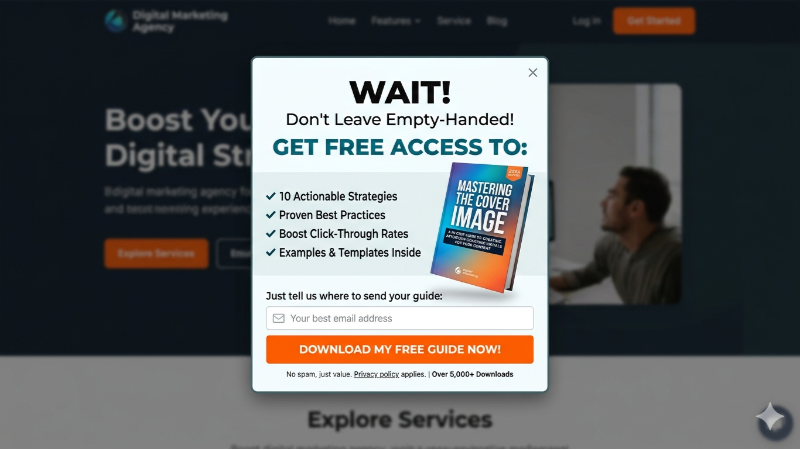
Most popups appear the moment someone lands on a page, or after a few seconds, and if they don’t offer real value or relevance, they feel unnatural and intrusive. The button click popup is different. It is triggered when someone actually clicks on a button or unique element on your page, making the popup feel seamless. These high-converting popups are one of the best popups to use in 2026 because they feel like a natural extension of a button, won’t affect your SEO, and drive conversions. If you have wondered how to use a popup maker on button click, this is your WordPress guide for beginners.
What Is a Button Click Popup?
The click-triggered popup is triggered when a visitor clicks a specific element, image, or button. These types of popups have one of the highest conversion rates. Unlike other popups, they don’t rely on typical popup triggers like page load, time on page, or user behavior such as scroll activity.
For example, someone can trigger the button click popup by clicking on:
- A button or CTA
- Menu items
- Hyperlinked Text
- Close Button
- Images
- Icons
- Logos
You can create a button click popup on just about any element on your webpage.
Button click triggers often use these popup content types:
- Lead capture forms
- Video lightboxes
- Coupon reveals
- Booking forms
- Content upgrades
Understand the Difference Between a Popup, Modal, and Lightbox
How to Create a Button Click Popup in WordPress (Step-by-Step)
When creating a button click popup in WordPress using PopupBox, the most important steps to enable this high-converting popup are to select the correct trigger type, “On Click,” and you need to add the class ID for your button. Below you can find a detailed step-by-step guide on how to create a button click popup in WordPress.
Step 1: Install PopupBox
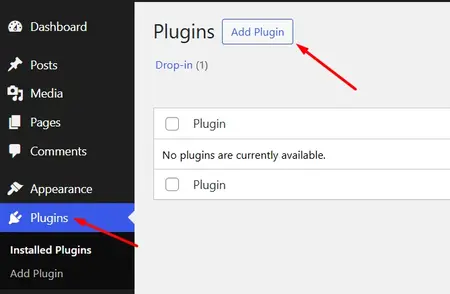
1. Go to your WordPress Dashboard.
2. Select Plugins on the menu on the side and press “Add New.”
3. Search for the plugin, such as PopupBox.
4. Click Install Now, then Activate.
5. View the “PopupBox” menu item on the left side of your dashboard.
6. Click on PopupBox > Create Popup.
Step 2: Design and Place Your Popup
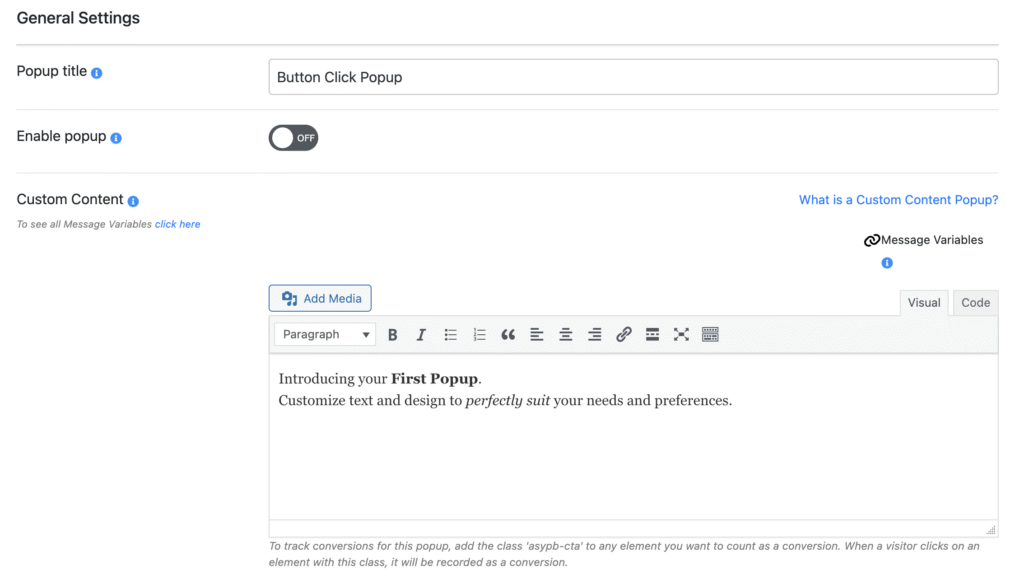
1. Click “Add New” and select the popup type you want to create.
2. Under general settings, title your popup and enable popup.
3. Add your content and popup description and choose where your popup will appear.
Step 3: Set the Click Trigger
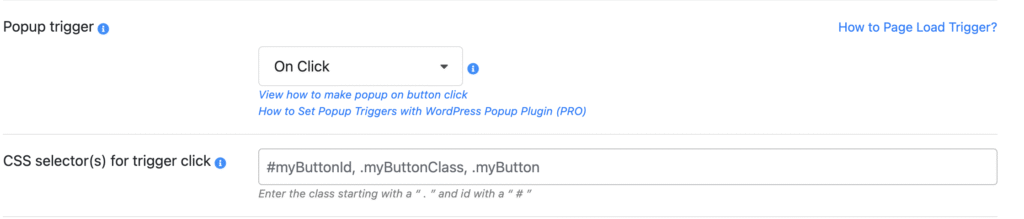
1. Next is the key part: set the popup trigger. Choose the “On Click” option.
2. Next, go to the “CSS selector for trigger click,” where you need to add your Class ID.
3. Add a dot and place your information.
Step 4: Publish and Test
1. Click “Save” to your popup.
2. Go to the page where you added a popup and click the button.
A More Detailed Guide for Beginners: How to Create a Popup in WordPress
The Additional Steps: How to Find the Class ID for your CSS Selector for Trigger Click
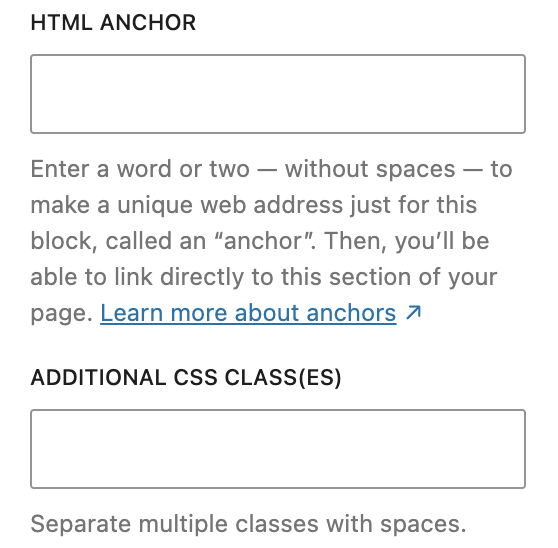
You can find the class ID in the block’s Advanced settings panel in WordPress. Find your chosen page, click on the specific block or element, and navigate to your advanced settings on the post. Here, you can find the HTML anchor and Additional CSS Classes.
HTML anchor → generates an id attribute (e.g., #my-button). Referenced with a # prefix.
Additional CSS Class(es) → generates a class attribute (e.g., .my-button). Referenced with a . prefix.
The Additional CSS Class is what you’ll paste into PopupBox’s CSS selector field, prefixed with a dot.
When Do You Use a Button Click Popup?
As these are one of the highest-converting popups, you should use them when you want to do exactly that or help users with the next logical step of their journey.
Common user cases include opening a contact form via subscribe buttons, expanding product details when clicking on “demo,” or special offers that are revealed when clicking on a CTA.
Most Popular Popup Types by Trigger Rules and Where They Work Best
Before you choose which popup trigger to use, understand the other popup triggers and how they are used.
Exit-Intent.
Also, a high-converting popup, these popups are triggered when a user is about to leave a page.
They are often used on checkout or e-commerce pages to drive conversion rates.
For More Tips, Discover What an Exit-Intent Popup Is and How to Convert Users in 2026
On Page Load.
These popups appear when a user enters a webpage.
These are often used on the landing as welcome popups for lead generation or for announcements.
Scroll Triggered Popups
A popup is displayed after a user scrolls to X% of the page.
These can be used on the landing page or content pages to drive subscription to a newsletter relating to the content.
Learn more about popup placement: How to Add Popups to Any Page or Post in WordPress.
Why Use a Click Trigger Instead of a Page-Load Popup?
Page-load popups aren’t always bad. But you are disrupting the user journey the very moment they arrive on your home page, so your announcement better be worthwhile. Otherwise, you risk scaring the user away. A click trigger, on the other hand, is essentially controlled by the user; the popup trigger matches the user’s intent, an essential UX principle, which makes them so powerful. When someone clicks a button like “Get my discount,” and a popup appears with that information, their expectations are met.
The Advantages of Using a Click Triggered Popup.
Lower bounce risk.
Visitors who aren’t interrupted on arrival are more likely to stay, read, and engage with your content before they ever see a popup.
Better conversion quality.
A person who clicks a button to open a form has context and intent, unlike the page-load popup.
SEO-friendly.
Google’s intrusive interstitials policy targets popups that block content immediately on page load, especially on mobile.
Here is a deeper dive into popups and SEO according to the latest Google updates
Effective Button Click Popup Placement and Examples
Button click popups need to make sense. Here are four placements that consistently perform well.
1. Pricing Page: “Get a Quote” Button
Adding a button that opens a contact form popup rather than redirecting to a separate page is smart and engaging.
2. Blog Post or Resource Page: “Download the Free Guide” Button
Content pages are ideal for lead capture. This button can open a simple name and email form.
3. Homepage Hero Section: “See How It Works” Button
Not every popup needs to collect information. A play button or “See it in action” CTA in your homepage hero that opens a video lightbox popup is a low-commitment way to keep users engaged.
4. Product or Shop Page: “Claim Your Discount” Button
For WooCommerce stores or any site running promotions, a button that reveals a coupon code inside a popup is more effective than displaying the code openly on the page. It creates a small moment of anticipation and reward, which increases perceived value.
What Popup Plugins Best Support a Button Click Popup?
If you own a WordPress website and want to quickly and easily learn how to create click-triggered pop-ups, these are your best options.
| Feature | PopupBox | Popup Maker | Elementor Popups |
| Click trigger | Yes | Yes | Pro only |
| No-code CSS selector | Yes | Limited | No |
| Free tier | Yes | Yes | No |
| Built-in form builder | Yes | No | No |
| Lightweight/fast | Yes | Yes | Yes |
Create a Button Click Popup Today
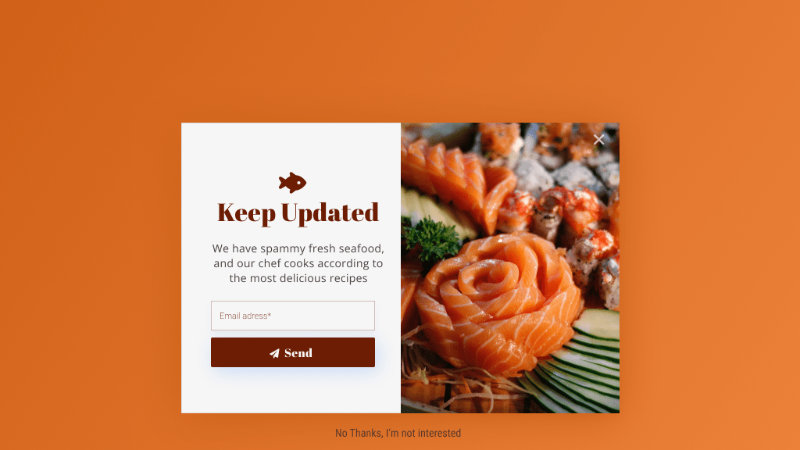
A button click popup is one of the best popups you can use today because it is SEO-friendly, has a lower bounce rate, and is generally better converting. By using some of the best popup plugins today, you can also create a click-triggered popup without using any coding. Popups that offer fast support and are easy to use for beginners are a good place to start, which is why users love PopupBox.
Don’t just take our word for it. Here’s what one WordPress user had to say about PopupBox:
“I couldn’t find a better one that works well with different browsers and so many options!”
FAQ: Button Click Popups in WordPress
Yes, any clickable element on your page can act as a trigger, not just buttons. Hyperlinked text, images, icons, menu items, and even logos can all open a button click popup.
No, and this is one of the reasons click-triggered popups are worth using. Google’s intrusive interstitials policy targets popups that block content the moment someone lands on a page, particularly on mobile. Because a button click popup only appears when a visitor chooses to interact with it, it won’t get penalized by Google.
Not with most popup plugins. The only technical step involved is adding a CSS class name to your button inside WordPress’s block settings, which takes about ten seconds and requires zero coding knowledge. Everything else, the popup design, trigger settings, and display conditions, is very straightforward under your popup’s dashboard.
Yes. PopupBox supports custom content inside any popup, which means you can embed a lead capture form, contact form, or booking form directly inside the popup window.
Install PopupBox from the WordPress plugin directory, create your popup, and set the trigger to “On Click.” Then go to your button’s block settings in WordPress, add a CSS class under Additional CSS Class(es), and paste that class name into PopupBox’s CSS selector field with a dot in front of it. Save and test your popup.