Exit-intent popups are one of the most popular popups today because they have the highest conversion rates, and if you run an e-commerce site, you should be using them. Exit-intent popups catch users at a crucial moment, when they move toward the “Exit Button.” The average popup conversion across websites is 4.8%, but cart abandonment exit popups convert at 17.12%. Here is how to create an exit-intent popup in WordPress, plus exit-popup examples that convert, and best practices for 2026.
What Is an Exit-Intent Popup?
An exit-intent popup is a website overlay that appears when a user is about to exit a website. This popup is triggered by user behaviours such as a mouse moving to the close button or address bar, or a dramatic drop in engagement on a page. Exit-intent popups are most commonly used to reduce cart abandonment.
Take a Deeper Dive: What Is an Exit-Intent Popup and How to Convert Users in 2026
How to Add an Exit-Intent Popup in WordPress with PopupBox
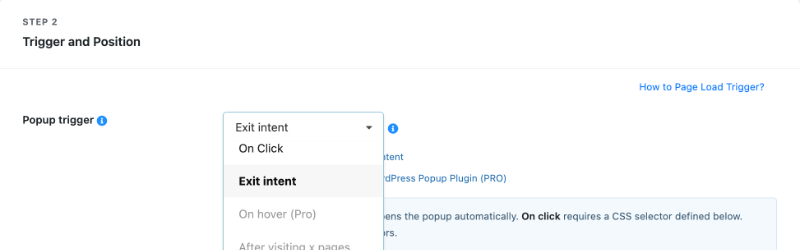
The Exit Intent Trigger detects when a visitor is about to leave your website by tracking mouse movement. So, when creating an exit-intent popup, the most important step is to set the popup trigger rules. Here is how to create an exit-intent popup in WordPress using PopupBox.
1. Install and activate PopupBox from the WordPress plugin directory.
2. Navigate to PopupBox and “Create New Popup” (or edit an existing one if you have already created one).
3. Under General Settings, name and enable your popup.
4. Customize your message, CTA, and design.
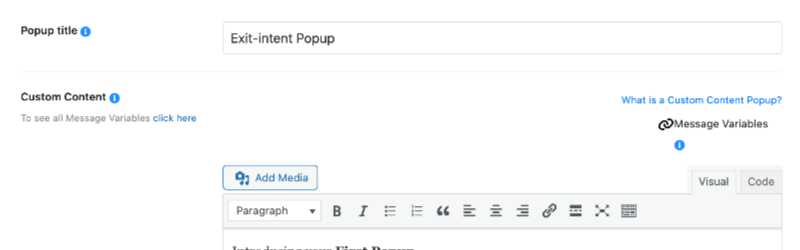
5. Choose where to display your popup. You can also choose popup placement. For example, you can display your popup on the cart or checkout page.
6. Then, the most important step, under Popup Trigger, select “Exit Intent.”
7. Save your popup.
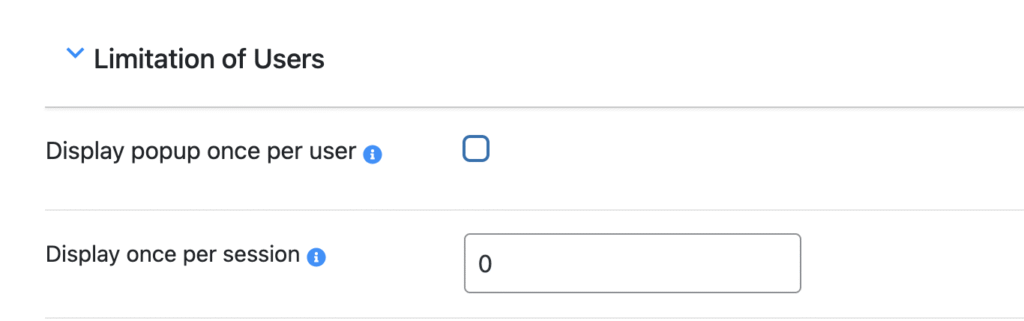
8. Under the Limitation Rules, you can select to display a popup once per session.
9. Publish and test your exit-intent popup.
How to Add an Exit-Intent Popup on Mobile
Mobile is where exit-intent gets complicated. The technology relies on mouse movement, so when creating an exit-intent popup on mobile, you have to use different signals, which can include:
1. On hover
2. Scrolling to the element
3. Time on page
Remember, mobile behavior might be different from desktop behavior. Desktop behavior often means higher focus and more user intent, while mobile might reflect boredom, scrolling, or simple curiosity. Adjust your CTA to match the intent. PopupBox also allows you to hide popups on mobile or desktop, depending on your objectives.
Where Should You Place Your Exit-Intent Popup?
Most people place their exit-intent popup on the cart-abandonment page to boost conversions. But this is not always the best option. Look at your website analytics to find high time-on-page but low conversion. Product pages that have high engagement rates but no concrete actions. An exit-intent popup doesn’t have to be placed on the last possible step for it to be effective.
How to Place Your Exit-Intent Popup
1. Go to your Settings, choose your popup page placement options.
2. Under Display, select your display rules: show your popup on the home page, all pages, or you can select to exclude and include specific pages.
Here is a more detailed guide on How to Add Popups to Any Page or Post in WordPress
What Makes Exit-Intent Popups Different From Regular Popups?
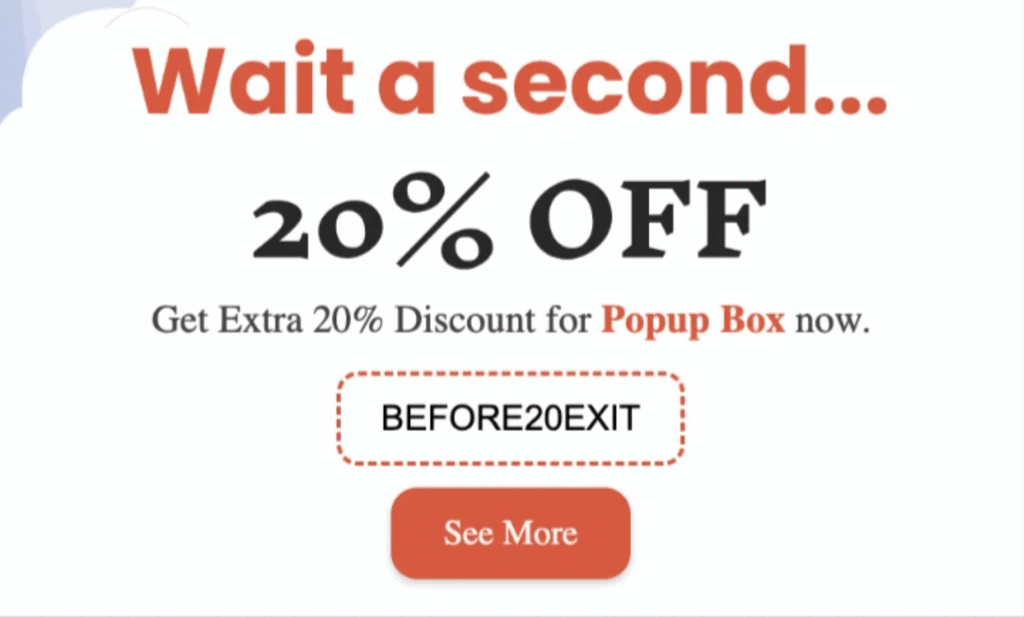
Exit-intent popups are different from other popups because they don’t fire as someone lands on a page. They are triggered on user intent.
For example, your visitor is about to leave. They are on your product page, but haven’t purchased anything. Their cursor is slowly moving toward the “Exit” button. But, what if that scroll activity activated a popup which said, “Don’t go yet, here’s an extra 10%.”
Other popup triggers include:
On load
On click
After visiting X page
Scrolling to the element
On hover
What is a Popup in WordPress: The Ultimate Beginner’s Guide
When Should You Use an Exit-Intent Popup?
You should use an exit-intent popup to:
Recover potentially lost visitors: Recover users’ abandoned cart
Increase conversion rates significantly: Provide last-minute incentives
Generate Leads: Collect contact information before they leave
Exit-Intent Popups Examples That Actually Convert
A high-converting exit-intent popup isn’t just about the trigger. It should be placed strategically with a strong CTA. The content needs to match the page and trigger. For the best results, pair exit-intent popups with Coupon Popups for cart recovery and conversion, or with Subscription Popups to grow your mailing list for lead generation.
5 Exit-Intent Popup Examples
Cart Abandonment Recovery

Popup Type: Coupon Popups
Placement: Cart Abandonment
Goal: Create urgency.
Idea: “Leave now and lose 10% off.”
Last-Chance Offer on a Pricing or Product Page
Popup Type: Coupon Popups
Placement: Product Page
Goal: Make the offer more appealing.
Idea: “Here’s a free trial.”
Blog-to-Lead Conversion

Popup Type: Subscription Popups
Placement: Blog Post
Goal: Generate a lead.
Idea: “Subscribe now to get our free SEO checklist.”
Feedback Surveys
Popup Type: Contact Form
Placement: Product page
Goal: Gain valuable insights
Idea: “Help us improve.”
Promote Events

Time-sensitive offers create urgency by default. A webinar signup popup on a landing page catches visitors who were interested but not ready to commit.
Popup Type: Countdown Popups
Placement: Landing page
Goal: Remind users about events or announcements
Idea: “Don’t miss our free webinar.”
Common Problems (and Fixes) When Setting Up Exit Popups in WordPress
Even with the right plugin, exit-intent popups can behave unexpectedly. Here are the most common issues WordPress users run into and how to fix them.
My Exit Popup Isn’t Showing at All
Caching
Clear your site cache and test in an incognito window to rule this out.
Script conflicts
Check your browser console for JS errors and temporarily deactivate other plugins to isolate the conflict.
Display rules
Double-check that your popup is enabled, saved, and published, and include the page you’re testing on.
The Advanced Exit-Intent Popup Strategy
If a visitor learns that leaving your checkout page reliably produces a 10% discount, they’ll do it every time. So, you should vary your offer. Use a discount code for first-time visitors, give a free resource for returning readers, and provide a feedback form for returning visitors.
Exit-intent popups should try to match the behaviour. PopupBox’s display rules let you get specific about who sees what and when. That specificity is what separates a popup strategy from a generic one.
Best Exit-Intent Popup Practices Today
Creating exit-intent popups today also means using the best practices. Users don’t want popups to feel spammy, unclear, or too “salesy.” Keep the conversation going and always keep in mind what device your user is using.
Shows Popup Once Per Visitor
If someone closes the popup, don’t show it again when they visit your website for the second time. And if they convert, don’t show related popups.
Make Your Messaging More Conversational
You should still have clear CTAs, but your message should feel less about sales and more conversational, leaning toward relationship building.
Keep Your Design Clean
Think about elements like using large text and high contrast for accessibility. Move away from flashing elements or overcrowded designs, unless it is part of your branding.
The Thumb‑Friendly Rule
Mobile exit intent is tricky because there’s no mouse. Here, you may want to track movement, engagement time, and activity around the centre of the screen.
Wait, Don’t Leave
Exit-intent popups are your chance to keep visitors. When you pair them with the right offer, a coupon, a freebie, or a reason to stay, they can convert otherwise lost users into customers. You can get creative with your offering and copy. Most users won’t leave if they have a good reason to stay. Try using an exit-intent popup today and track your results, keep optimizing, and drive your conversion rates using a trusted popup plugin.
Try PopupBox today
FAQs: Exit-Intent Popups on WordPress
Exit-intent popups are often part of a paid plan. PopupBox includes exit-intent detection as part of its paid plan for only $29 per year, including advanced targeting rules, analytics, and customizable templates, making it a strong option to build an exit-intent popup on WordPress.
No, exit-intent popups rely on mouse-tracking, which doesn’t work on mobile. You can try other triggers that detect user intent, such as scroll depth or back scroll motion.
No. Google penalizes popups that block content the moment a page loads, particularly on mobile. Exit-intent fires when someone is already leaving, so there’s nothing to penalise. It’s one of the most SEO-friendly popups to use today.
Are Popups Bad for SEO? What You Need to Know from the Latest Updates
Plugins like PopupBox let you create exit-intent popups in WordPress with no coding knowledge. The most important step under the general settings is to find the Popup Trigger and select “Exit Intent.” Then save and test your popup to see if it triggers correctly.
How to Create a Popup Without Coding (A Guide to Using No-Code Popups Today)
Exit-intent popups are different as they are triggered when a user displays a specific behavior, instead of using time-based triggers, which can feel random. Instead of firing immediately or after an X-second delay, they only show toward the end of the user’s interaction with your site. These popups perform well because they are intent-based.
Data show that cart abandonment exit popups and click-triggered popups have the highest conversion rates, often scoring above 20%.
How to Create a Popup on Button Click (WordPress)